
 Posted by
 Note: This blog post is part of a larger post I wrote for Sellers Dorsey and is available here.
Have you ever explored a visualization where you can highlight a selected dimensional value, such as a state, within a very tall horizontal bar chart and thought, “Wouldn’t it be nice if I could just see the closest values above and below the one I’ve selected?”
For example, let’s say I have four measures – Total Budget, Budget per Capita, Percent of Population on Medicaid, and Percent of Budget Allocated for Medicaid – and users can select a state of interest to see all its data. If I were to create four worksheets listing all 50 states in a bar chart for each measure, I would be taking up a lot of visual real estate to rank each measure and highlight the selected state.
Reducing a Bar Chart to the Closest Ranking Values
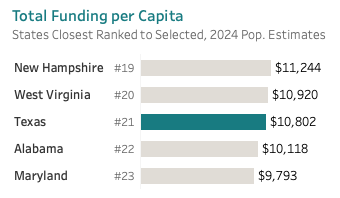
Instead of showing all the states, I prefer to use a trick to reduce the number of bars to just the closest ranking values (the four closest) to the selected state.

By also showing the rank value, it’s easy for me to see that Texas, for example, is ranked 21st for total funding per capita and 45th for the percent of the population enrolled in Medicaid. Additionally, I can see the states that are above and below Texas, but I don’t have to see the whole list of states.
Method 1: Boolean Tableau Calculation
Historically, I’ve used a complicated table calculation to identify the index value of the selected state and then only pull in the closest ranked values. I discovered this calculation below years ago through the Tableau Community. You can see versions of the calculation used in visualizations by Lindsey Poulter and Andy Kriebel, among others.

This calculation finds the index of the selected state (parameter value = state) and then checks for the two above and below that value. If the state falls within the top or bottom five, a different logic is applied to pull in the correct surrounding states. The resulting table calculation is a Boolean (T/F) and is then placed on the filters shelf, set to True, and computed along state (and any other dimensional values in the view, such as the selected state parameter calculation used on color).
Method 2: Continuous Measure Tableau Calculation
The calculation in method 1 works like a charm (I’ve used it for years), my coworker, Robert Rotzin, identified a super clever way to simplify the calculation and achieve the same result.
First, the following two supporting calculations are needed:
p.Selected State:
[State Parameter]=[State]
//Boolean that flags the selected state
State Index:
WINDOW_MAX( IF MIN([p.Selected State]) THEN INDEX() END )
//Table calculation that finds the index (row number) of that selected state)
Once you have the state parameter as well as the calculations above, you can create the following calculation that uses State Index and compares it to every other row to find the closest ones:
Rank Filter:
RANK(ABS(INDEX()-[State Index]),’asc’)
Next, place the “Rank Filter” calculation on the filters shelf as a continuous measure. The initial filter settings don’t matter, since you’ll adjust them after the next step.
Right-click on Rank Filter on the filter shelf and select “Edit Table Calculation…” Since this is a nested table calculation, be sure to set the “Compute Using” for both Rank Filter and State Index to the correct dimensions in your view, as shown in Figure 7 (in my case, State and p.Selected State, which was used on color).

Now that the nested table calculation is set to compute using the specific dimensions, right-click on Rank Filter in the filter shelf and edit it to include “At most” = 5.

This shortened calculation achieves the same result as the longer one I mentioned earlier. Still, it is undoubtedly much simpler to implement and to edit directly in the filter shelf if you want to adjust how many states (dimensions) are displayed in your bar chart.
You can see this chart in action here.
Cheers,
Lindsay
 Viz Zen Data
Thank you, Lindsay! This is a very helpful write-up. It’s particularly helpful for a task I am working on, and I am wondering, for the example you have linked at the end, do you have a link that can be downloaded for learning or downloadable version you can share? Referring to this in your hyperlink below, https://public.tableau.com/app/profile/healthdataviz/viz/StateEnactedBudgetSummary/StateEnactedBudget
LikeLike